Add Logon Message via Intune
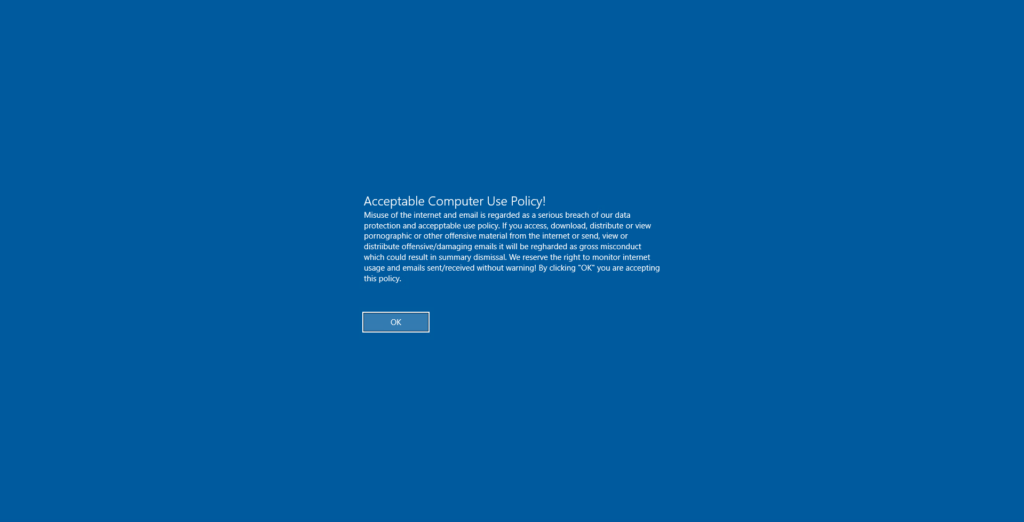
An interactive logon message is a customizable text message that appears on the Windows login screen before a user enters their credentials. It can be used for legal notices, acceptable use policies, or welcome messages.
In this guide I’ll be using an Intune Settings Catalog configuration profile to display a legal notice on the login screen.
Getting Started
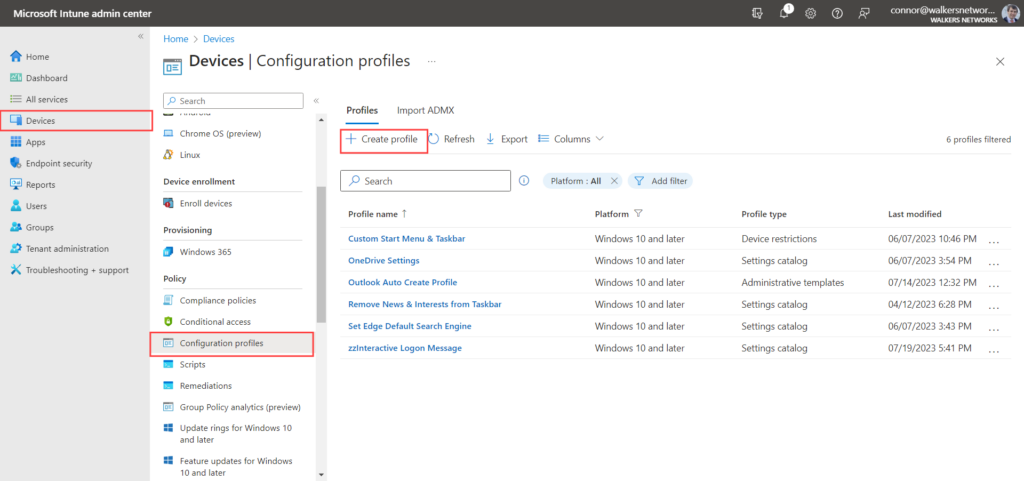
Log in to Microsoft Intune and navigate to Devices > Configuration Profiles > Create profile.
Create the Profile
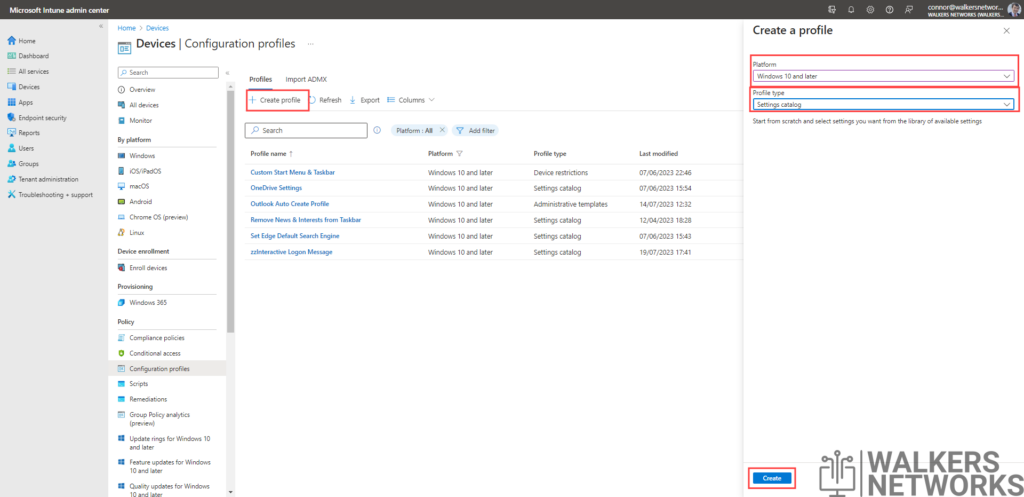
After clicking Create profile, choose the platform and profile type:
- Platform: Windows 10 and later
- Profile type: Settings catalog
Then click Create.
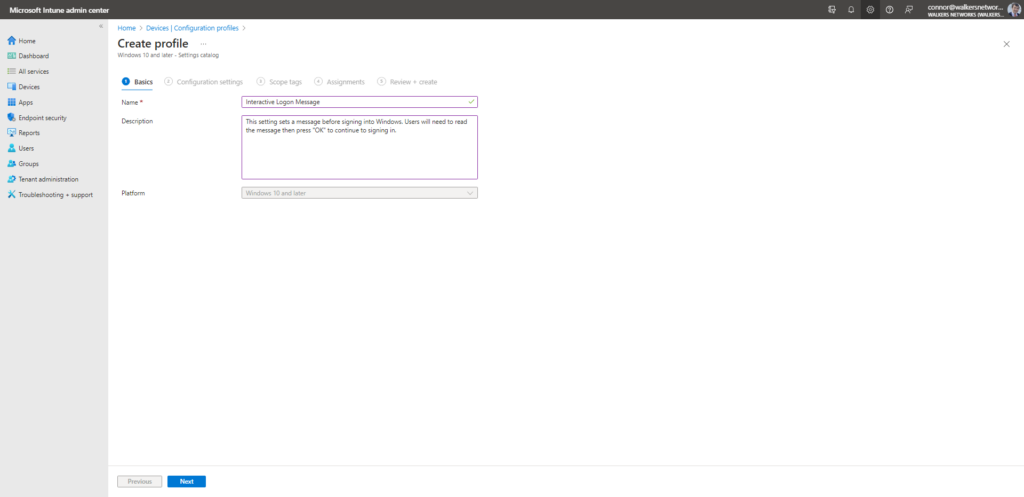
Give the profile a Name and Description, then click Next.
Add the Settings
Click Add settings. In the search box enter logon and select Local Policies Security Options. From the results, enable both:
- Interactive Logon Message Text for Users Attempting to Logon
- Interactive Logon Message Title for Users Attempting to Logon
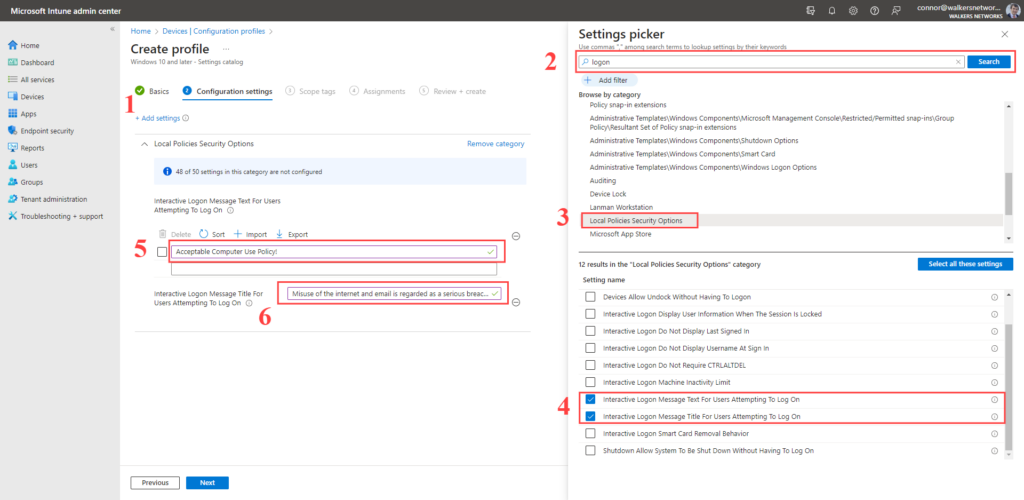
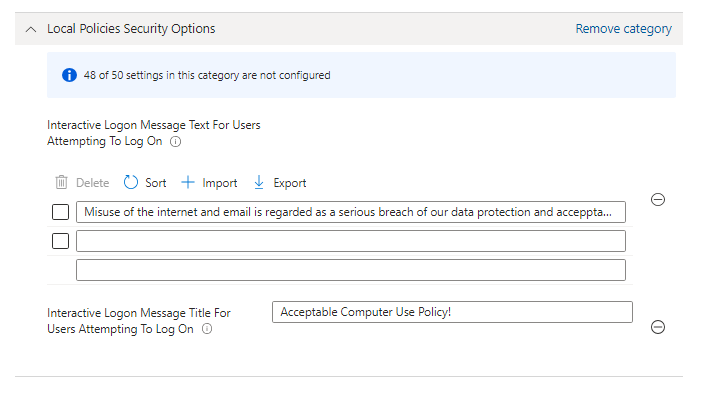
Enter the message body and title you want displayed on the login screen, then click Next.
You can skip the Scope tags page.
Assign the Profile
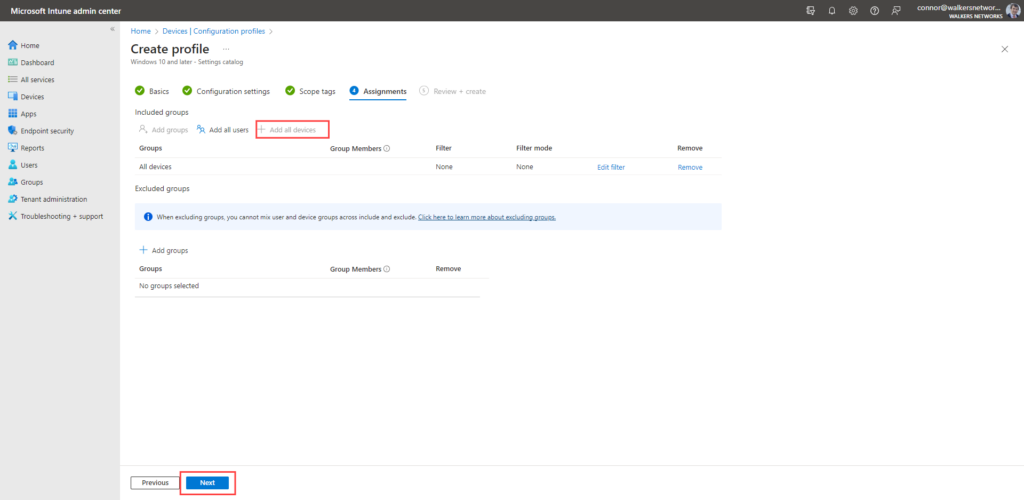
On the Assignments page, choose who receives this policy. Selecting All Devices applies it to every Intune-enrolled device. Alternatively, target a specific user or device group to limit the scope.
Click Next once you’ve made your selection.
Create and Deploy
Review your settings and click Create.
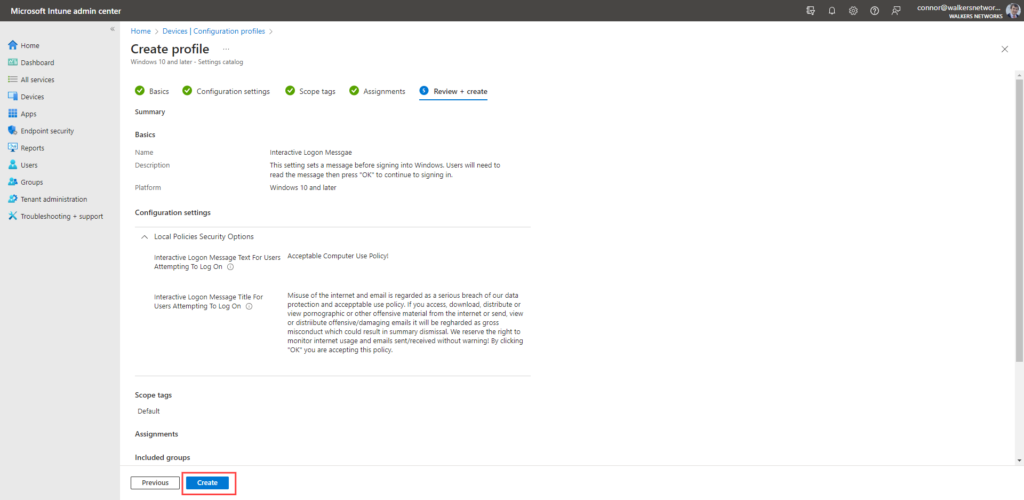
The policy will be applied the next time each targeted device checks in with Intune and reboots.
Result
After the device restarts, the logon message will appear on the lock screen before the user can sign in.